Docker M1 Mac
Yet Again, Docker macOS
After using the official Docker for Mac for a while, it became clear to me that the app is not yet stable and reliable enough to be used for professional use case in the background nor user-friendly, ready-to-go like a actual desktop mac app.
I toned down the setting and limiting the CPU to 2 cores with 4/3(?)GB RAM, and I also checked the box for using the new release virtualization framework in Experimental feature. However, the ram usage would still be going thr the limits and lagging, breakdown is also often seen. Eating roughly 4GB of RAM and I have seen errors where it said it used 30G but probably swap usage along with crashes…
As under the hook, the Docker for Mac still basically created a Linux VM, kind of like podman. The underlying performance issues might be the way the VM is regulated/managed. So, why not just create a VM and use docker cli or simply ssh to the linux instance?
There are a bit headaches and issues with Docker on macOS.
- IO has always been a really big issue, causing really slow build and even slow git for bigger project. I never tested on new build now.
- Volume mounting.
Although creating your own VM will also lead to a plate of problmes such as network device/video device/volume storage mounting. But those issues are also persistant on macOS app. After all its not linux.
Perfomance issues
The article caught my eyes as it compares docker build time on Intel/Apple Silicon Macs with different hyperviser.
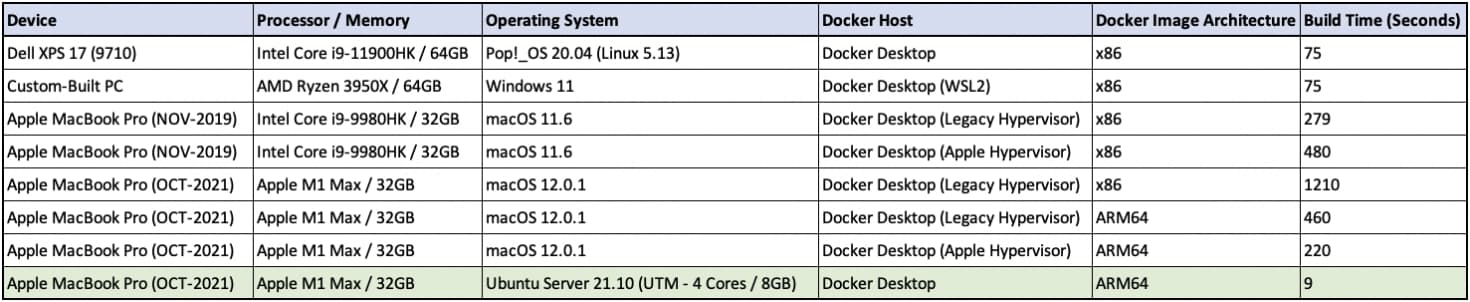
The Table said it all, whatever it is, the Docker for Mac makes it hard for macOS to deliver the performance it is capable of. And that last line is the one I am interested.
device/volume mounting issue
For me, personally, theres a need to use the volume in Docker and that volume is not one M1’s SSD but on another network device mounted on macOS via SMB/CIFS.
It was slow on macOS itself and it will probably take a bigger blow with all that connection protocol added on top of that with introducing VM. So I am curious about how it went going forward.
Actual set up
A detailed post on setting up UTM VM with Docker on macOS
First, install UTM, a free and open source VM tool built only for macOS.
A minial debian build Debian 10.4 were used for installing Docker, in theory, more trimming can be done to reduce the overhead on that instance.
- Remeber to change root user(root/password) and default user(debian/debian):
sudo passwd root
sudo passwd debian
- Update and install essential: SSH
Some problems with apt-get update: https://stackoverflow.com/questions/68802802/repository-http-security-debian-org-debian-security-buster-updates-inrelease
sudo apt-get update -y && sudo apt-get install openssl-server

# check
sudo systemctl status ssh
This confirms the SSH server is running and listening on port 22. If you need more help with that, PhoenixNap has a great tutorial on How to Enable SSH on Debian.
- Install Docker on Debian 10.4 VM
Follow: https://phoenixnap.com/kb/how-to-install-docker-on-debian-10
Change amd64 to arm64
# Step 1: Uninstall Default Docker Packages
sudo apt-get purge docker lxc-docker docker-engine docker.io

# Step 2: Install Required Packages
# Update the default repository with the command:
sudo apt-get update

# Download the following dependencies:

sudo apt-get install apt-transport-https ca-certificates curl gnupg2 software-properties-common

# Step 3: Install Docker
# Method 1

# 1. Download Docker’s official GPG key to verify the integrity of packages before installing:
curl -fsSL https://download.docker.com/linux/debian/gpg | sudo apt-key add -

# 2. Add the Docker repository to your system repository with the following command:
sudo add-apt-repository "deb [arch=arm64] https://download.docker.com/linux/debian buster stable"

# 3. Update the apt repository:
sudo apt-get update

# 4. Install Docker Engine – Community (the latest version of Docker) and containerd:
sudo apt-get install docker-ce docker-ce-cli containerd.io

# 5. The service will start automatically after the installation. Check the status by typing:
sudo systemctl status docker

# check if docker works
docker -v
Config macos Docker CLI to use VM’s Docker Enginer
# this should returns nothing/empty output
ssh debian@127.0.0.1 -p 22022 -N -L/tmp/docker-on-debian.sock:/var/run/docker.sock ssh://debian@127.0.0.1
# set up DOCKER_HOST location
export DOCKER_HOST=unix:///tmp/docker-on-debian.sock
We’ll get “permission denied” when trying to use the Docker CLI from macOS. This is because the debian user doesn’t have permissions to use Docker without using sudo. To fix this, on the Debian VM, we’ll run the following command to add the debian user to the docker user group:
sudo usermod -aG docker $USER
Now the Docker CLI will connect to the Debian VM instead. We will confirm this by running docker system info | grep System from the macOS terminal to see that the operating system is Debian, not Darwin or macOS:
Working!
$ docker system info
Client:
 Context:    default
 Debug Mode: false

Server:
 Containers: 0
  Running: 0
  Paused: 0
  Stopped: 0
 Images: 0
 Server Version: 20.10.12
 Storage Driver: overlay2
  Backing Filesystem: extfs
  Supports d_type: true
  Native Overlay Diff: true
  userxattr: false
 Logging Driver: json-file
 Cgroup Driver: cgroupfs
 Cgroup Version: 1
 Plugins:
  Volume: local
  Network: bridge host ipvlan macvlan null overlay
  Log: awslogs fluentd gcplogs gelf journald json-file local logentries splunk syslog
 Swarm: inactive
 Runtimes: runc io.containerd.runc.v2 io.containerd.runtime.v1.linux
 Default Runtime: runc
 Init Binary: docker-init
 containerd version: 7b11cfaabd73bb80907dd23182b9347b4245eb5d
 runc version: v1.0.2-0-g52b36a2
 init version: de40ad0
 Security Options:
  apparmor
  seccomp
   Profile: default
 Kernel Version: 4.19.0-9-arm64
 Operating System: Debian GNU/Linux 10 (buster)
 OSType: linux
 Architecture: aarch64
 CPUs: 8
 Total Memory: 1.45GiB
 Name: debian
 ID: R5BA:KFRQ:37TY:VCYD:HPVW:NTVN:2F5L:RS4S:GLNT:CXCX:6RUJ:C6U6
 Docker Root Dir: /var/lib/docker
 Debug Mode: false
 Registry: https://index.docker.io/v1/
 Labels:
 Experimental: false
 Insecure Registries:
  127.0.0.0/8
 Live Restore Enabled: false

WARNING: No swap limit support
Problems with UTM
UI still freezes from time to time when I tried to resize/config the image. Thats annoying af.
Problems with porting:
It seems to I have to keep this ssh activa without CTRL+C
$ ssh debian@127.0.0.1 -p 22022 -N -L/tmp/docker-on-debian.sock:/var/run/docker.sock ssh://debian@127.0.0.1
After I stopped, I need to remove sock and re-do the whole thing.
Solution: treat the VM as remote host and modify DOCKER_HOST, ssh create a private key and adds it to VM.
export DOCKER_HOST="ssh://debian@127.0.0.1:22022"
CPU Benchmark (1000 difference with native sysbench)
Another post benchmark cpu using sysbench
With a threads=2, I got 105585 in ubuntu docker
docker run -it --rm ubuntu
apt-get update && apt-get install sysbench
sysbench cpu --threads=2 run
#### ubuntu docker (arm) on 1.5 GB ram Debian VM by UTM
CPU speed:
    events per second: 21115.40

#### UTM Debian 10.4
CPU speed:
    events per second: 21082.14

#### macos native
CPU speed:
    events per second: 25912346.76

#### macos Intel Core i5 - 10210U
CPU speed:
    events per second: 8372004.44

#### ubuntu on intel (Docker 4 CPUs 8 GB RAM swap 2 GB)
# docker -v
# Docker version 20.10.11, build dea9396
CPU speed:
    events per second:  2526.18
WTF, why is VM takes such a dramatic hit, even with the right tool. I might ended up using the Sonarr/Radarr for macOS, 4.0.0 of Radarr already has osx-arm64 build, just waiting for Sonarr.
And yes, the QEMU used by UTM would still eat up about 2.3 GB RAM